
Who This Guide Is For
A Geschäftsführerin at a 6-person content agency in Munich. Five active client accounts. Six
separate AI subscriptions. Four hours per client per week lost to tool-switching, context
rebuilding, and reconciling brand voice inconsistencies before anything goes to the client.
This is the setup manual she needed before she started. It covers exactly how to configure
Qolaba for a multi-client agency workflow — from the first workspace to the first client
deliverable — in a way that eliminates the structural causes of that overhead.
If you are a solo consultant managing multiple clients, almost everything in this guide applies to
you too. The workspace architecture is the same; the team access section is less relevant until you
bring on your first collaborator.
What You Will Have Built by the End
By the time you finish this setup:
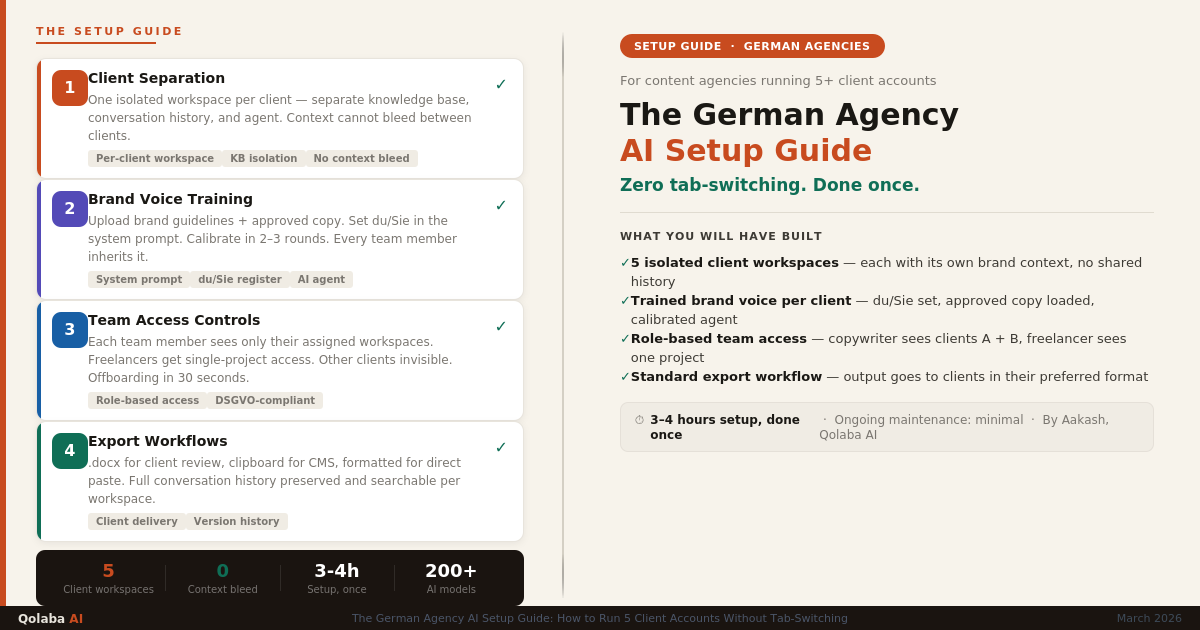
- Each of your five clients will have their own Qolaba workspace — isolated, persistent, preloaded with their brand context
- Each workspace will have a trained brand voice so every team member generates output in
that client’s tone automatically - Your team will have role-based access — a copywriter works in Client A’s workspace
without accidentally seeing Client B’s materials - You will have a standard export workflow so output goes to clients in the format they expect
Estimated setup time: 3–4 hours for five clients, done once. Ongoing maintenance: minimal.
Part 1: The Workspace Architecture — Client Separation That Actually Works
Why Most Agencies Get This Wrong
The most common mistake is creating one Qolaba account with one shared workspace and
expecting the AI to keep clients separate because you tell it to in each prompt. This does not
work reliably. Context bleeds. A copywriter working on Client B starts a new session and the
model carries fragments of what was discussed for Client A. Brand voice inconsistencies appear
and nobody can trace where they came from.
The correct architecture is one workspace per client, not one workspace for all clients.
Each workspace in Qolaba is a fully isolated environment with its own:
- Knowledge base (brand guidelines, approved copy, client briefs)
- AI agent configuration (which model, what system prompt, what constraints)
- Conversation history (the model never confuses Client A’s history with Client B’s)
- Team access permissions (controls who can even see the workspace)
This isolation is architectural, not just instructional. You do not need to tell the AI to stay in client
mode. It already only knows what you put in that client’s workspace.
Step 1 — Create Your First Client Workspace
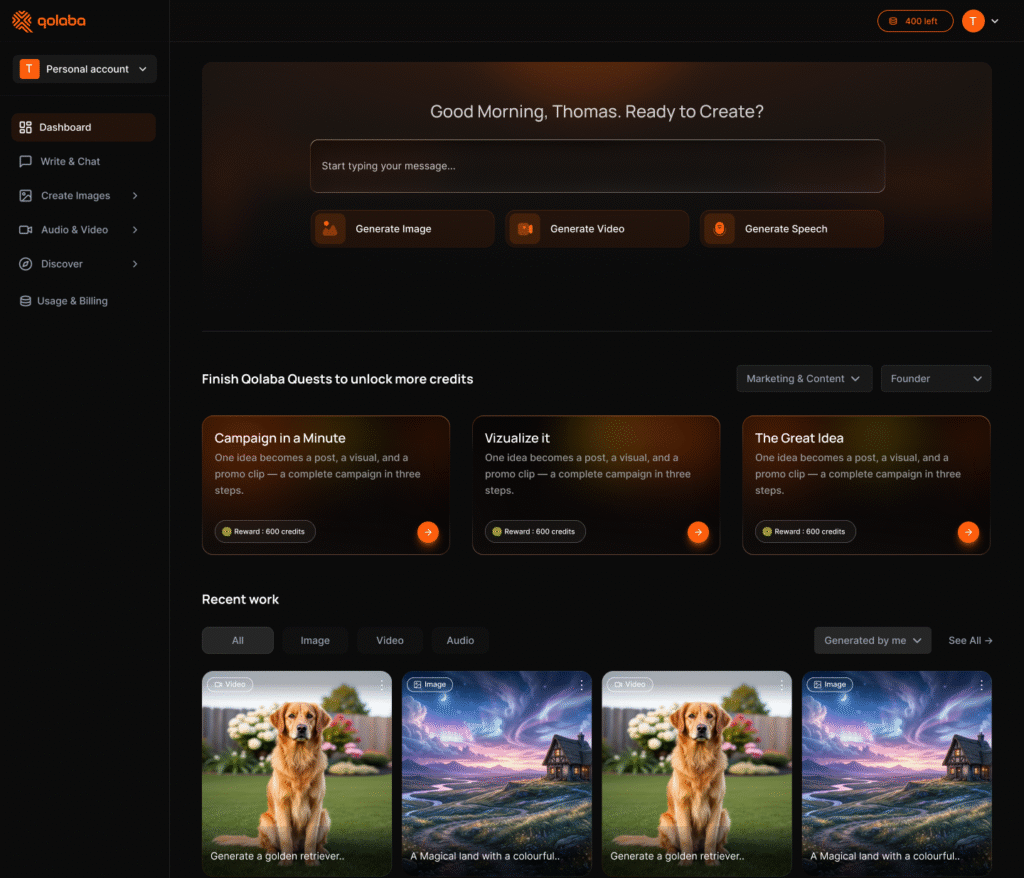
From your Qolaba dashboard:
- Click New Workspace in the top right corner
- Name it clearly — e.g. “Mango Media — Content” or “Client A — Social”
- Set workspace visibility to Private (team access is added separately in Part 3)
- Click Create Workspace
Naming convention that works: Use [Client Name] — [Work Type] . Examples: “Brauerei
Schmidt — Social”, “TechFirma GmbH — Blog”. If a client has multiple work streams (social
vs. long-form), create a workspace for each. Keeping work streams separate prevents tone
cross-contamination.
Step 2 — Upload the Client Knowledge Base
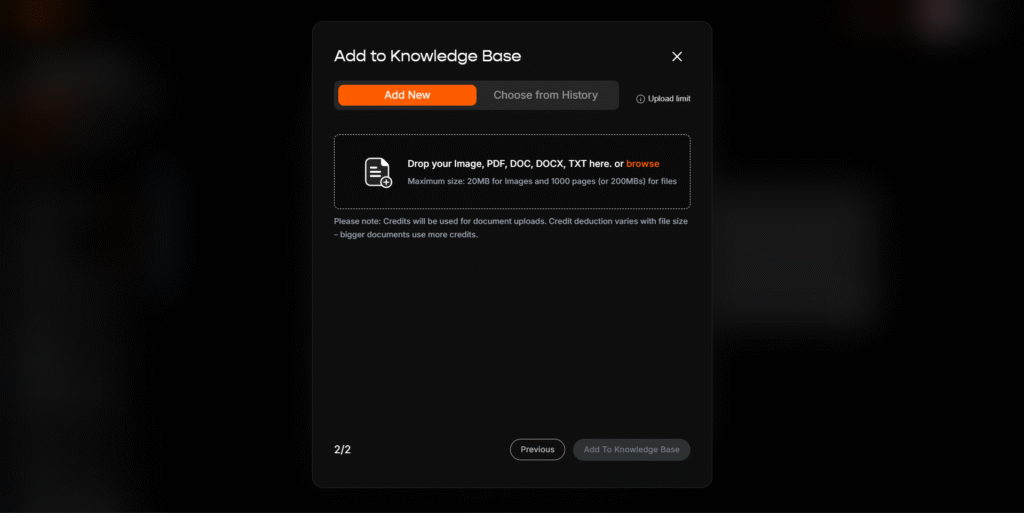
The knowledge base makes this workspace specific to this client. Everything you upload
becomes context the AI references in every conversation in this workspace.
For each client workspace, upload:
| Document | What to include |
| Brand guidelines | Tone of voice, approved language, off-limits words, formality level (du/Sie), brand values |
| Approved example copy | 3–5 pieces of recent approved content. The model learns voice faster from examples than from guidelines alone. |
| Current campaign brief | What they are working on right now, the goal, the audience |
| Product/service reference | A one-page overview of what the client does and their key differentiators |
| Client-specific glossary | Terms they use, terms they avoid, German/English mix preferences |
To upload :
- Inside the workspace, click Knowledge Base in the left panel
- Click Upload Document — accepts PDF, Word, and plain text
- Upload each document. Qolaba indexes it automatically.
- Click Activate Knowledge Base
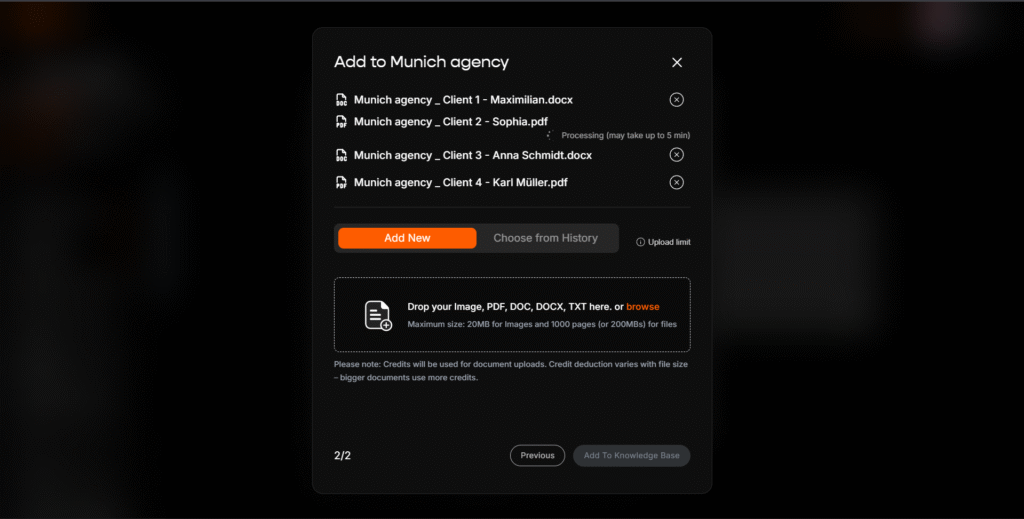
Time note from the Munich agency: First workspace setup takes about 45 minutes because
you are building the habit. By the third client it takes under 20 minutes. By the fifth, under 15.
Step 3 — Set the Workspace System Prompt
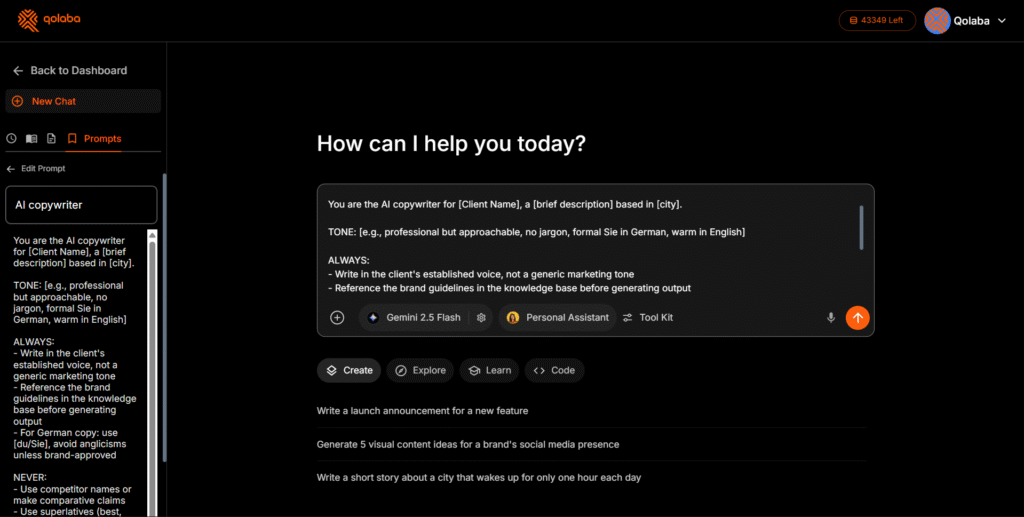
The system prompt is the standing instruction that runs at the start of every conversation in this
workspace. It briefs every team member automatically — no manual context-setting per session.
A good agency system prompt:
| You are the AI copywriter for [Client Name], a [brief description] based in [city]. TONE: [e.g., professional but approachable, no jargon, formal Sie in German, warm in English] ALWAYS: Write in the client’s established voice, not a generic marketing tone Reference the brand guidelines in the knowledge base before generating output For German copy: use [du/Sie], avoid anglicisms unless brand-approved NEVER: Use competitor names or make comparative claims Use superlatives (best, most, leading) without supporting data CURRENT CAMPAIGN CONTEXT: [2-3 sentence summary of what is active right now] |
To set it:
- Inside the workspace → Settings (gear icon) → System Prompt
- Paste your prompt with this client’s specifics filled in
- Click Save
German-specific rule: Always specify du or Sie in the system prompt. If unspecified, the
model defaults to an inconsistent register. This single line prevents the most common brand
voice complaint German clients make about AI copy.
Step 4 — Repeat for All Five Clients
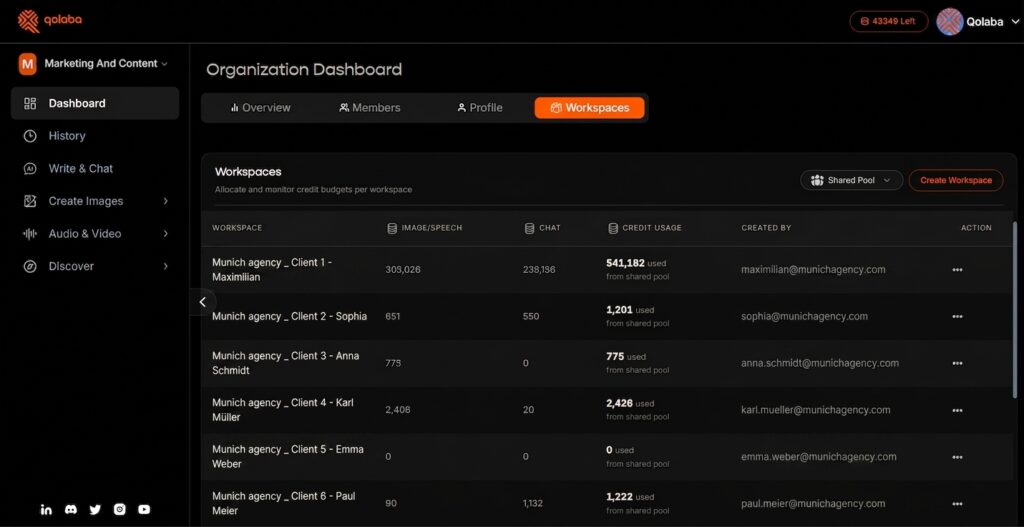
Repeat Steps 1–3 for each client. Your dashboard shows all five workspaces as separate tiles.
Once all five are created, context bleeding between clients is structurally solved — not managed
per prompt, but eliminated at the architecture level.
Part 2: Brand Voice Training — Making the AI Sound Like Each Client
The Problem With Default AI Output
GPT-4o defaults to polished, slightlyAmerican, moderately formal. Claude defaults to measured,
precise, slightly academic. These defaults produce competent copy that sounds like nobody in
particular.
For an agency, that is a problem. Your clients pay for copy that sounds like them.
The knowledge base loads the context. The system prompt sets the constraints. This section
covers the third layer: training a client-specific AI agent that generates in the client’s voice
without being prompted every time.
Step 5 — Create a Client-Specific AI Agent
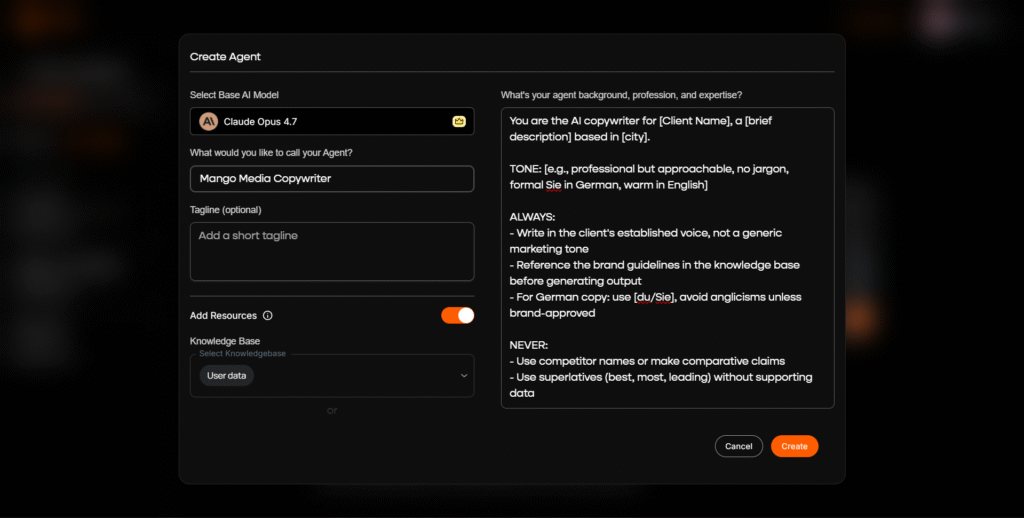
Inside each client workspace:
- Click Agents in the left panel → Create NewAgent
- Name it with the client: e.g. “Mango Media Copywriter” or “Schmidt Brauerei Social”
- Select the base model appropriate for this client’s work type:
| Work type | Best model | Credits |
| Long-form blog, strategy, reports | Claude | 5 per session |
| Social media, short copy, email | GPT-4o | 5 per session |
| High-volume first-pass drafts | DeepSeek or Llama | 2 per session |
| Premium quality, tone-critical work | Claude Opus | 10 per session |
- In Instructions: paste the same system prompt from Step 3
- Toggle Use Knowledge Base: ON — connects the agent to the client’s uploaded documents
- Click Create Agent
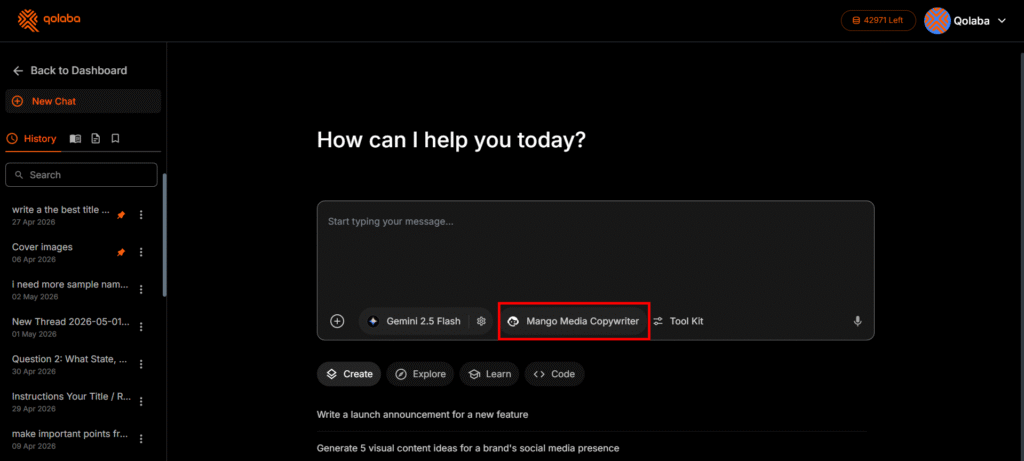
Step 6 — Run the Voice Calibration Test
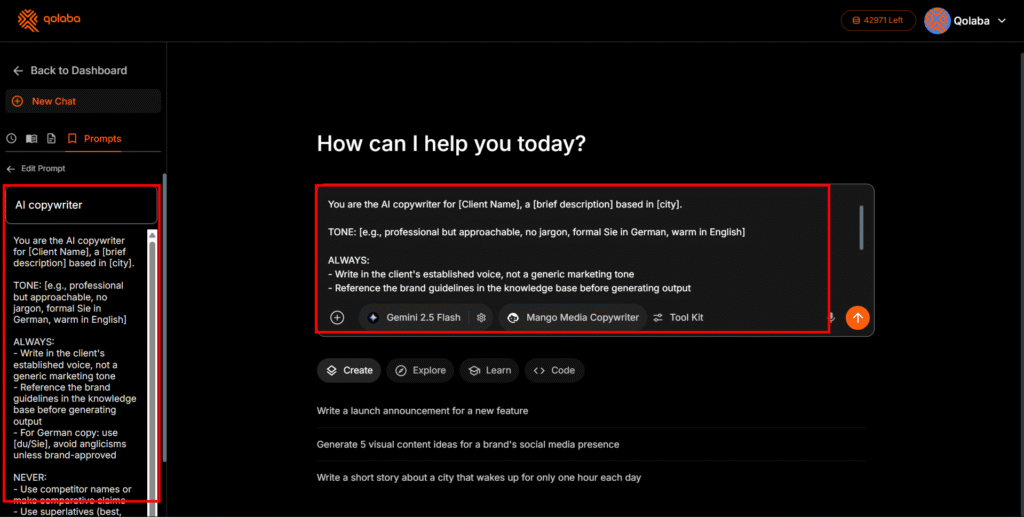
Before the workspace is team-ready:
- Open a chat in the workspace
- Ask the agent to write something you already have an approved version of — a social
caption, a product description, an intro paragraph - Compare the output to the approved version
- Identify the specific delta: too formal, wrong vocabulary, sentences too long, anglicism in
the wrong place - Add a one-line correction to the system prompt
- Re-run the test
Most workspaces reach usable calibration in 2–3 rounds of system prompt adjustment.
Document what you changed — this becomes the calibration log for that client, essential when
onboarding new team members.
In German copy, check specifically:
- Du/Sie consistency throughout (not mixed mid-piece)
- Sentence length matching the client’s style
- Anglicism usage matching the actual brand voice
- Punctuation style — German copywriting conventions differ from English
Step 7 — Build the Prompt Template Library
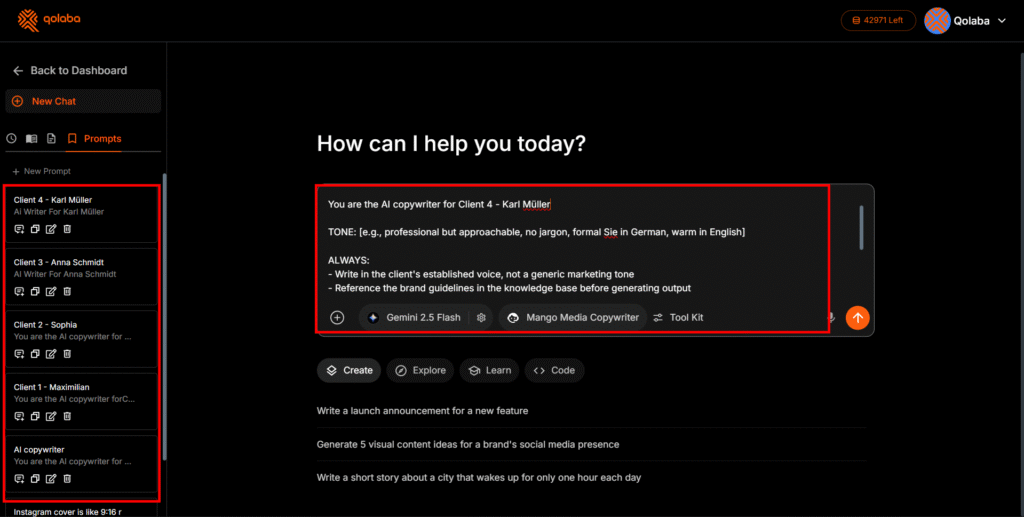
For each client workspace, build saved prompt templates for your most common task types.
Team members start from a calibrated prompt, not a blank slate.
Recommended starter set for an agency workspace:
| Template name | Output |
| Social caption — LinkedIn | 150–200 word LinkedIn post in client voice |
| Social caption — Instagram | Shorter, visual-led caption in brand tone |
| Blog intro | Opening 200 words in the client’s established style |
| Email subject line variants 5 subject line options for a campaign brief | 5 subject line options for a campaign brief |
| Press release | opening First two paragraphs in formal German PR register |
| German translation — brand tone | Translate English copy preserving brand voice |
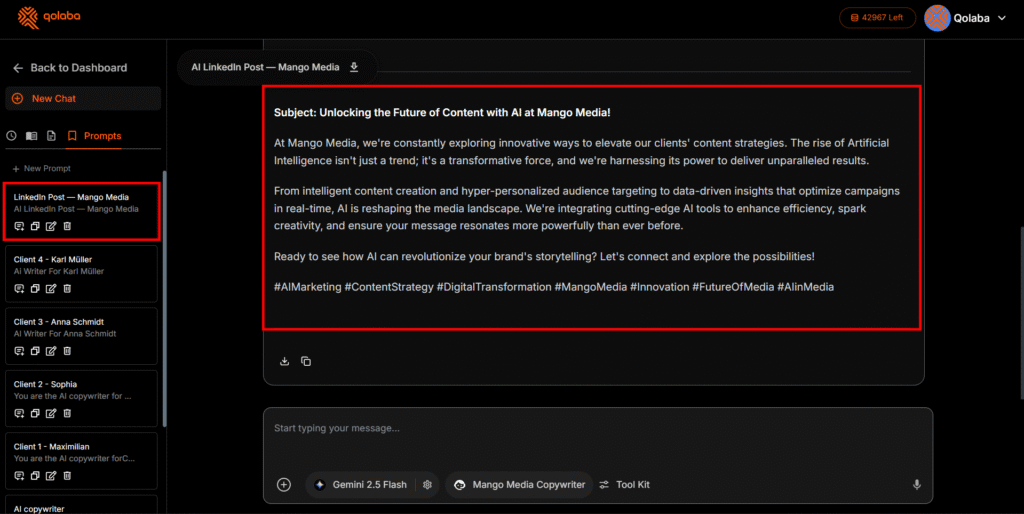
To save a template:
- Write the prompt in the chat window
- Click the bookmark icon next to the prompt
- Name it: “LinkedIn Post — [Client Name]”
- It appears in Saved Prompts for any team member in this workspace
Part 3: Team Access Controls — Who Sees What
The Problem With Flat Access
Most AI tools have one permission level: logged in or not. In an agency, this creates two risks:
- A team member working on Client A can accidentally access Client B’s materials
- A freelancer brought in for one project gets access to your entire account
Qolaba’s role-based access assigns team members to specific workspaces with specific
permission levels.
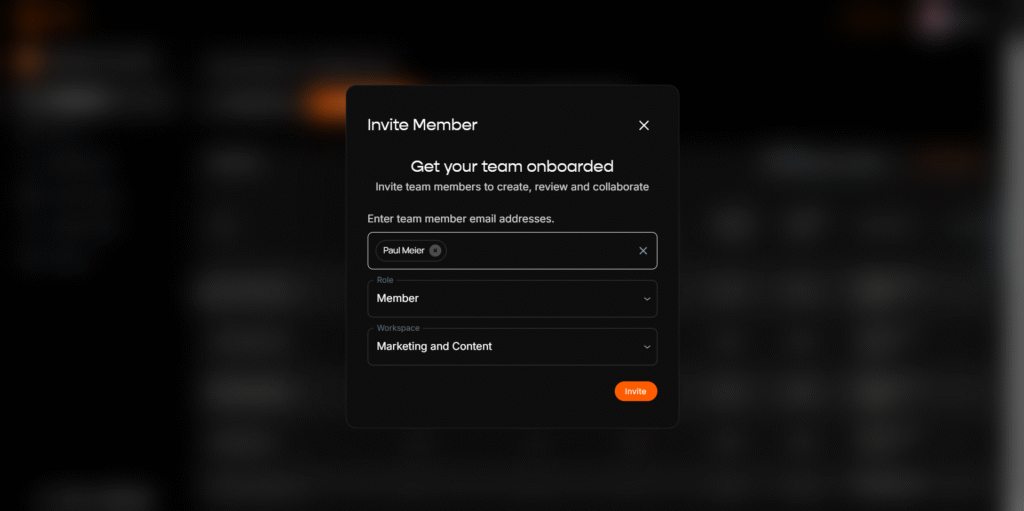
Step 8 — Set Up Your Team Roles
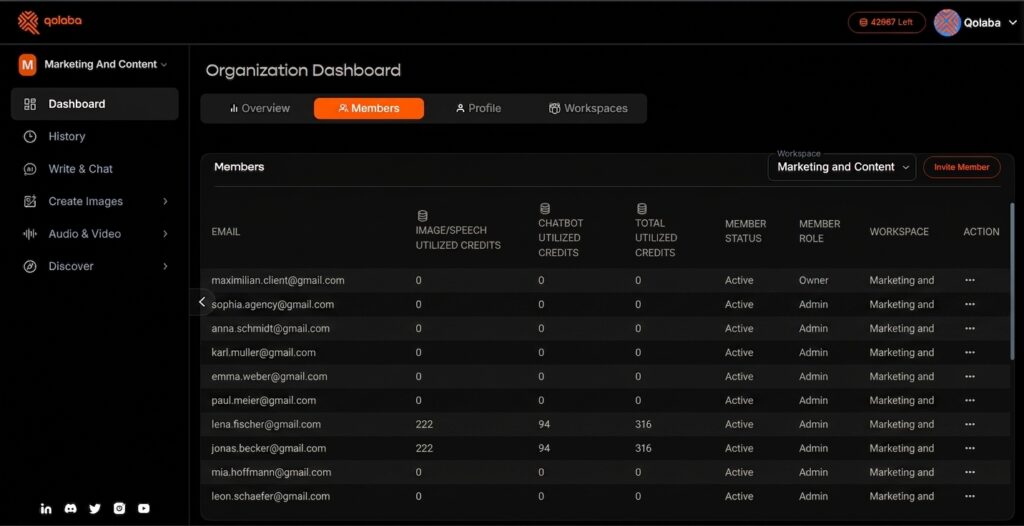
From account settings → Team → Invite Member:
| Role | What they can do | Who gets it |
| Owner | Full access to all workspaces, billing, team settings | Geschäftsführerin only |
| Admin | Create/manage workspaces, invite members | Senior account manager |
| Editor | Generate and edit in assigned workspaces only | Copywriters, designers, social managers |
| Viewer | Read conversations and outputs, cannot generate | Client contacts who want visibility |
Typical 6-person agency setup:
- Geschäftsführerin: Owner
- Senior account manager: Admin
- Copywriter, designer, social media manager: Editor
- Part-time freelancer: Editor (specific workspaces only)
Step 9 — Assign Team Members to Client Workspaces
Each team member’s role controls what they can do. Workspace assignment controls what they
can see.
For each workspace:
- Open workspace → Settings → Team Access → Add Member
- Select the team member
- Set their permission for this workspace:
- Full Access — generate, edit prompts, upload to knowledge base
- Generate Only — generate content, cannot modify workspace settings
- View Only — read output only
| Workspace | Geschäftsführerin | Copywriter | Designer | Social manager |
| Client A (B2B SaaS) | Full | Full | Generate only | — |
| Client B (Retail Munich) | Full | Full | Full | Full |
| Client C (Mittelstand) | Full | Full | — | — |
| Client D (Berlin startup) | Full | — | Generate only | Full |
| Client E (Austria hospitality) | Full | Full | Full | Generate only |
Workspaces with a dash are invisible to that team member. They cannot see those clients exist
DSGVO note: This workspace isolation satisfies the data minimisation principle (DSGVO
Art. 5(1)(c)). Client data in Client A’s knowledge base cannot be queried from Client B’s
workspace. The Teams plan AVV covers this architecture.
Step 10 — Set Up FreelancerAccess
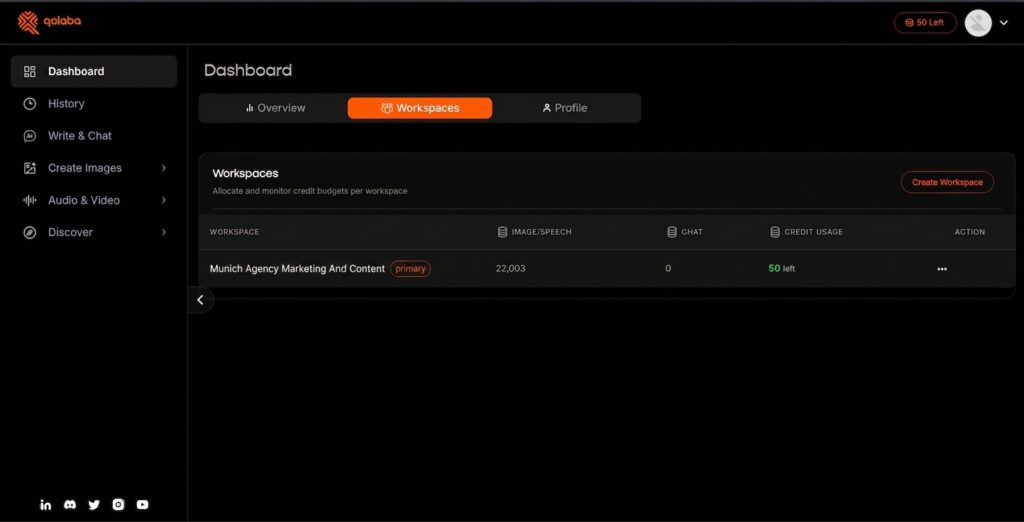
When bringing in a freelancer for a single project:
- Team → Invite Member with their work email
- Assign Editor role at account level
- Go to the project workspace → Team Access → add them with Generate Only
- When the project ends: remove them from the workspace in Team Access. Account still
exists but they have access to nothing.
Offboarding time: under 30 seconds. No risk of them retaining access to other clients.
Part 4: Export Workflows — Getting Output to Clients
Step 11 — The Standard Export Options
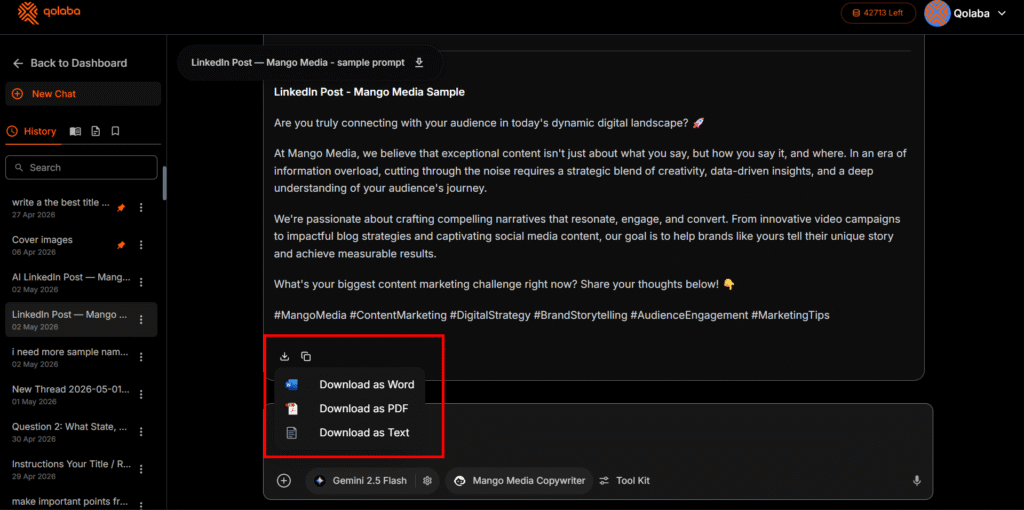
Every output can be exported directly from the chat window:
- Copy to clipboard — paste into your CMS, social scheduling tool, or email
- Download as .docx — for clients who want a Word document for review
- Download as .txt — clean, unformatted text for developers or CMS import
- Copy with formatting — preserves markdown/HTML structure for direct CMS paste
The Munich agency’s export defaults by output type:
- Social copy → Copy to clipboard → paste into Later/Hootsuite
- Blog drafts → Download as .docx → share via Google Drive for client review
- Email copy → Copy to clipboard → paste into Klaviyo/HubSpot
- Translated copy → Download as .docx → track-changes version for client approval
Step 12 — Build a Client Delivery Template
For consistent handoff, create a standard output document template per client. Ask the agent to
format output using this template before delivery:
| CLIENT: [Client Name] DATE: [Date generated] BRIEF REFERENCE: [Brief title or internal ref] MODEL USED: [GPT-4o / Claude / etc.] REVISION STATUS: Draft v1 ──────────────────────────── OUTPUT: [Generated content here] ──────────────────────────── INTERNAL NOTES: [Calibration notes, alternatives, team comments] APPROVED BY: ___ DATE: ___ |
Save this as a pinned prompt in each workspace. When copy is ready for delivery, prompt the
agent to “format this output as a client delivery document” — it populates the template
automatically.
Step 13 — Managing Version History
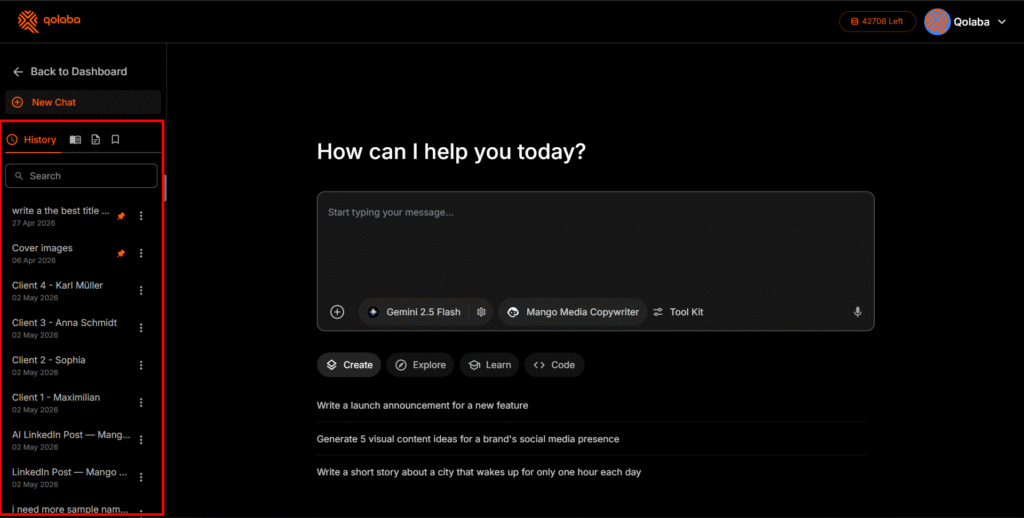
All conversations in a workspace are saved and searchable by default. This gives you:
- Version history: Every output ever generated in a client workspace is retrievable — the
prompt, the output, and which model produced it - Audit trail: For DSGVO-relevant work, a documented record of what data was input and
what was generated - Onboarding resource: New team members can read past conversations to understand how
the workspace is calibrated
To keep history organised:
- Name sessions when you start: “March 2026 — LinkedIn Campaign — B2B SaaS”
- Use workspace search to find past outputs by keyword
- Archive completed project sessions to keep the active workspace clean
The Full Setup Checklist
Per-Client Workspace (repeat for each of the 5 clients)
- Workspace created — clear naming convention
- Visibility set to Private
- Brand guidelines uploaded to knowledge base
- Approved example copy uploaded — minimum 3 pieces
- Current campaign brief uploaded
- Knowledge base activated
- System prompt written and saved — specifies du/Sie, tone, constraints, active campaign
- Client-specific AI agent created with correct base model
- Agent connected to knowledge base
- Voice calibration test run — output quality acceptable
- Saved prompt templates created: social, blog, email, translation
- Team members assigned with correct permission levels
- Export workflow documented for this clie
Team Setup (once)
- All team members invited with work email
- Roles assigned: Owner / Admin / Editor as appropriate
- Each team member’s workspace access verified — they see only assigned workspaces
- Freelancer access protocol documented and tested
- Teams plan AVV confirmed in place for DSGVO compliance
What Happens After Setup
The setup takes 3–4 hours. The benefit is every working hour after that.
When a new team member joins: send workspace access, walk through the system prompt, run
one calibration test together. 30 minutes, not a half day of briefing across six tools.
When a client updates their brand guidelines: update one document in one knowledge base.
Every future session across all team members automatically reflects the change.
When a client project ends and you offboard a freelancer: remove workspace access in 30
seconds. Their conversation history in that workspace is preserved for your records. They have
no visibility into any other client.
The four hours you invest in this setup is paid back within the first working week.
People Also Ask
How do I keep multiple client accounts separate in one AI workspace?
Create one dedicated workspace per client — not one shared workspace with prompts
instructing the AI to stay in client mode. Each Qolaba workspace has a separate knowledge base,
conversation history, agent configuration, and team access list. Context cannot bleed between
workspaces regardless of what is being generated.
Can different team members access different clients?
Yes. Team members are assigned to specific workspaces. Workspaces they are not assigned to are
invisible in their dashboard — they cannot even see those clients exist.
How do I train an AI to write in a specific client’s brand voice?
Three layers: upload brand guidelines and approved example copy to the workspace knowledge
base, write a system prompt specifying tone and register (du/Sie), and create a client-specific
agent connected to the knowledge base. Run calibration tests against approved copy and refine
the system prompt until AI output requires under 2 minutes of editing per piece.
Is Qolaba DSGVO compliant for agency use with client data?
The Teams plan includes AVV data processing agreements and workspace-level data isolation.
Client materials in one workspace cannot be accessed from another. PII protection is active. This
architecture satisfies the data minimisation requirement (DSGVO Art. 5(1)(c)) forAI-assisted
data processing.
How long does it take to set up 5 client workspaces?
3–4 hours for a complete setup — knowledge base, system prompt, AI agent, saved prompts, and
team access for all five clients. First workspace takes approximately 45 minutes. Each
subsequent workspace is progressively faster.
Start the Setup
→ Try Qolaba free — 400 credits on signup, no credit card required
Enough to set up two complete client workspaces, run calibration tests, and generate your first
week of content before committing to anything.
Aakash is the Founder & CEO of Qolaba AI. Qolaba consolidates 200+ AI models into one unified
workspace with persistent workspaces, custom AI agents, team collaboration, and DSGVOdefensible data architecture. 285,000+ users across 60+ countries.